
Settings
Settings holds the account-wide options that are not about you personally (that is Profile). Open it from the user menu in the lower-left corner of the app. It has four tabs: Notifications, Febe AI, User log and API. The API tab only appears when API access is on for your account.
Notifications
Section titled “Notifications”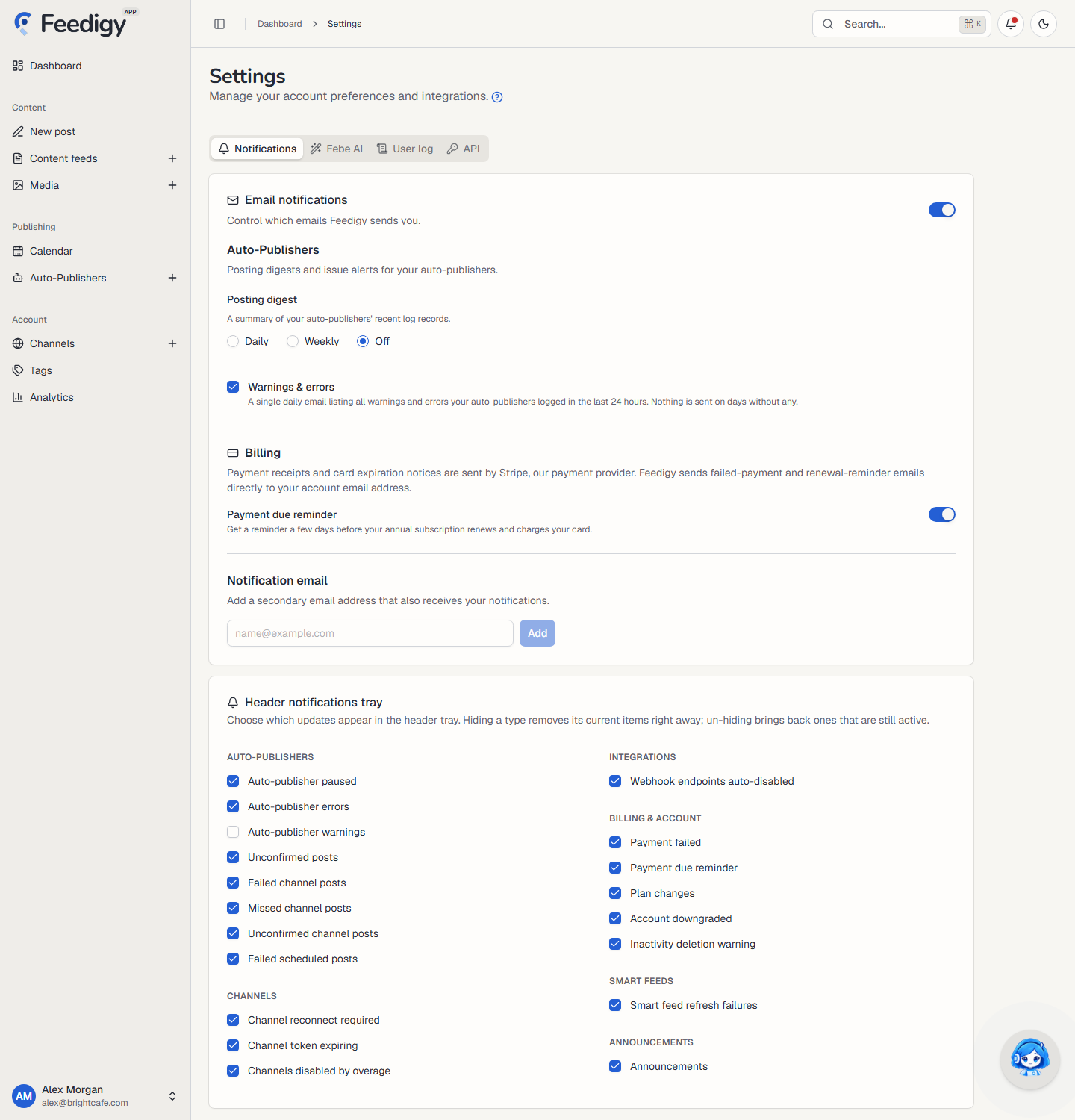
Email notifications
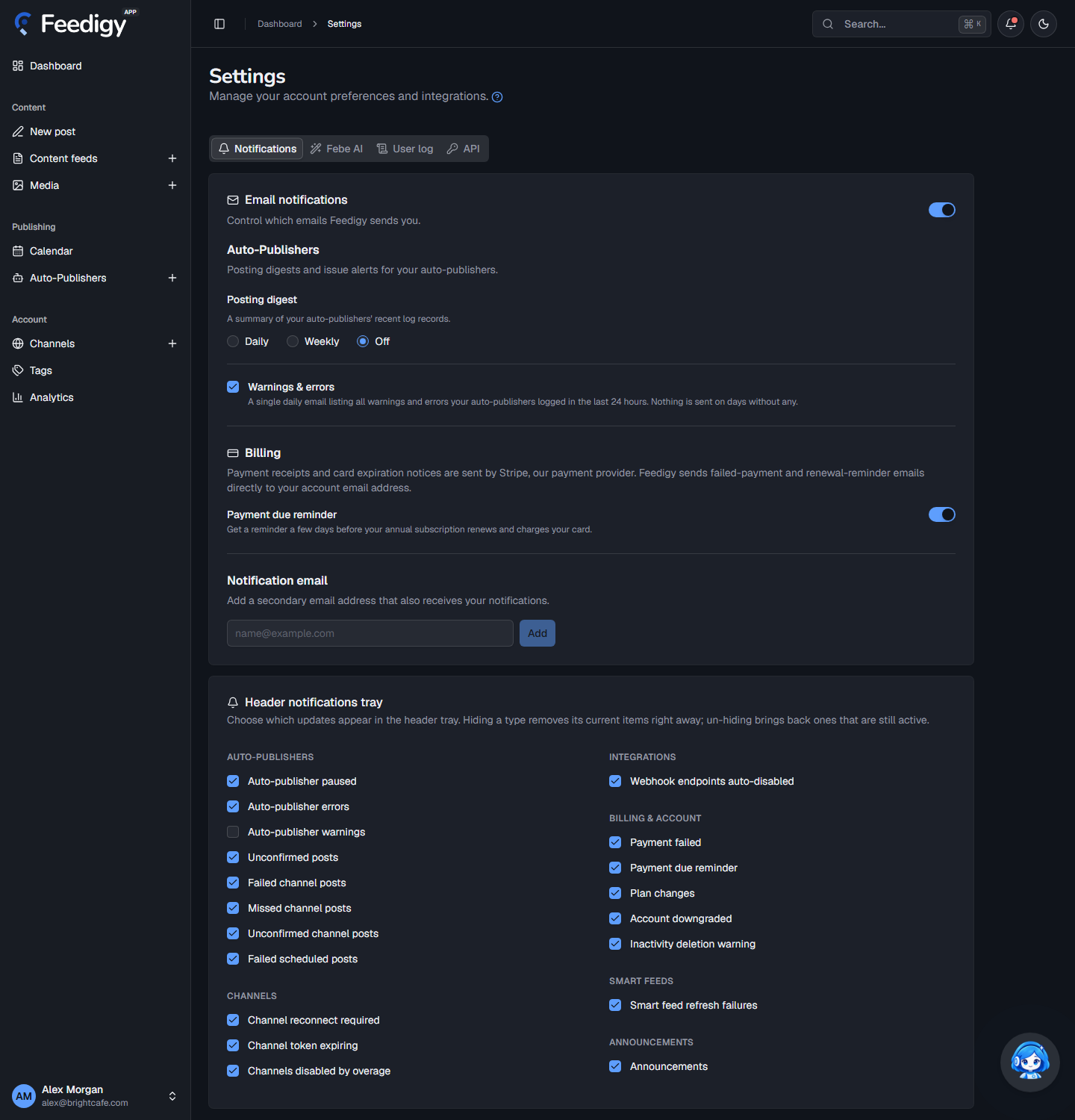
Section titled “Email notifications”The master switch at the top turns Feedigy’s emails on or off. Below it:
| Setting | What it does |
|---|---|
| Posting digest | A summary of your Auto-Publishers’ recent log records. Choose Daily, Weekly or Off. Select Test email to get one now. |
| Warnings & errors | One daily email that lists every warning and error your Auto-Publishers logged in the last 24 hours. Feedigy sends nothing on days without any. |
| Payment due reminder | A reminder a few days before your annual subscription renews and charges your card. Feedigy asks you to confirm before you turn it off. |
Stripe sends payment receipts and card-expiry notices. Feedigy sends failed-payment and renewal-reminder emails to your account email.
Notification email
Section titled “Notification email”Add a second email address that also gets your notifications. Feedigy sends a verification email first. The address shows Pending verification until you confirm it, then Verified. Use Resend if the email did not arrive, or Remove to delete the address.
Header notifications tray
Section titled “Header notifications tray”The bell in the app header lists updates that need your attention. Tick the types you want to see, grouped as Auto-Publishers, Channels, Integrations, Billing & account, Smart feeds and Announcements. If you hide a type, its current items disappear right away. If you show it again, the items that are still active come back.
Febe AI
Section titled “Febe AI”Febe AI uses Feedigy’s shared keys by default. Here you can use your own keys instead.
Text generation
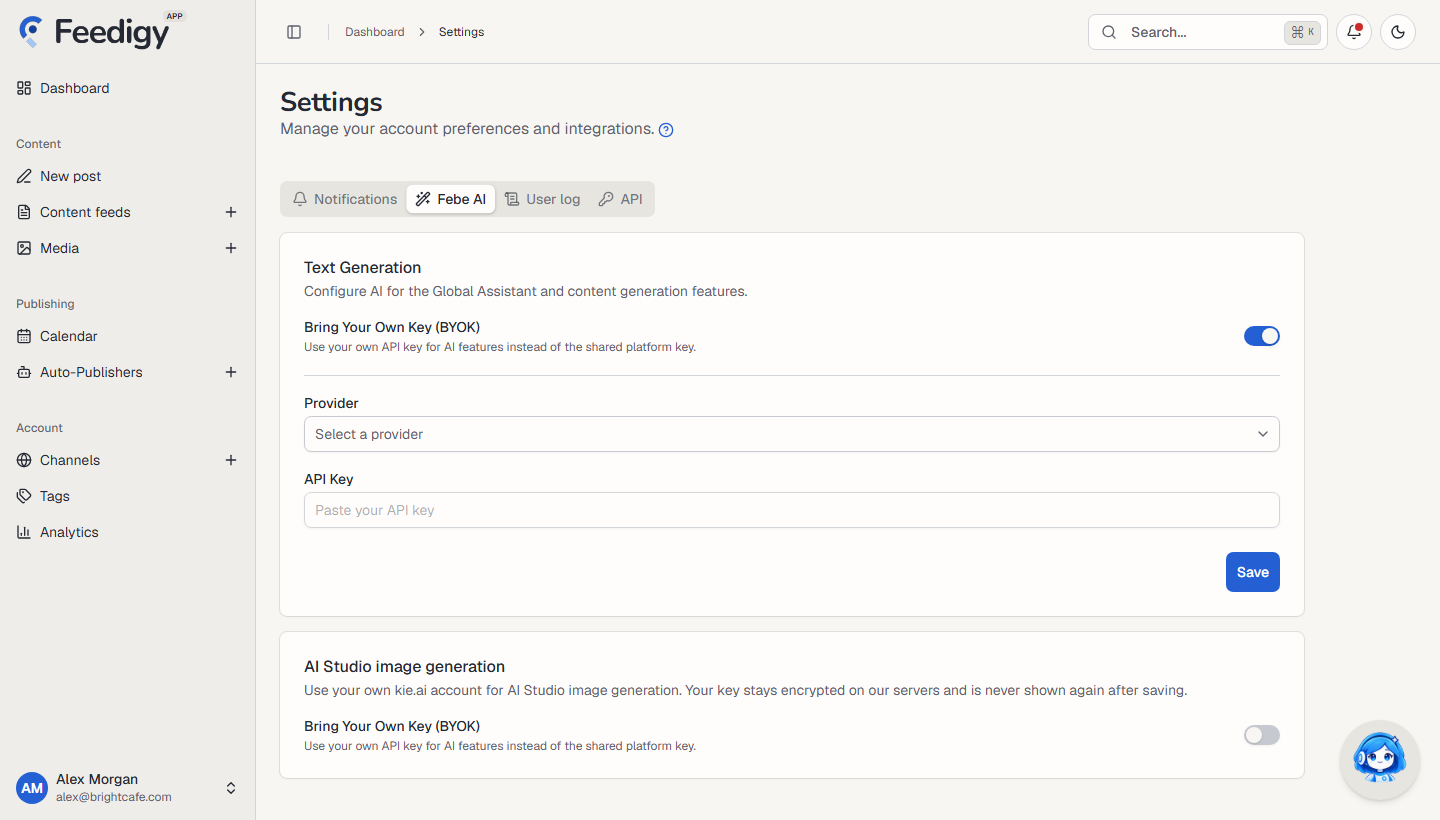
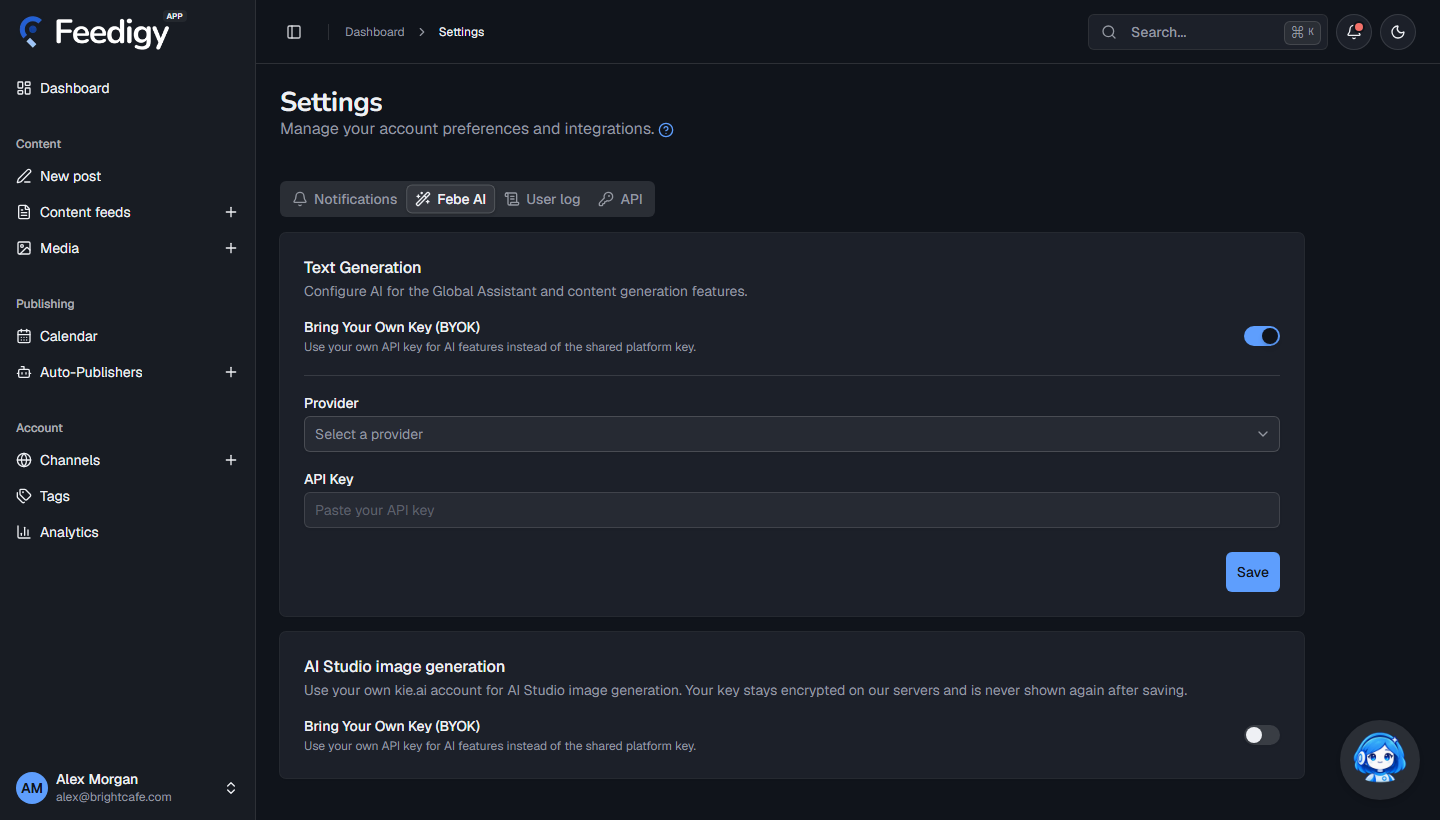
Section titled “Text generation”Switch on Bring Your Own Key (BYOK) to run the Global Assistant and the content generation features on your own account.
- Choose a Provider: OpenAI ChatGPT, Google Gemini, Anthropic Claude or DeepSeek.
- Paste your API Key. Feedigy checks the key.
- Pick a Default Model.
- Select Save.
If you switch BYOK off, text generation goes back to your Feedigy AI credits, and Feedigy keeps your key.
AI Studio image generation
Section titled “AI Studio image generation”Switch on BYOK here to use your own kie.ai account for AI Studio images. Paste your key and save. The key stays encrypted on Feedigy’s servers and is never shown again. The card then shows your kie.ai Balance, with a refresh button, and a Remove key button.
BYOK may not be on for every platform. If you see a message that it is not enabled, contact support.
User log
Section titled “User log”A history of your account activity over the last 90 days: what changed and when. Use the category filter and the search box to narrow it down, and scroll to load older entries.
This tab is for developers. It appears when API access is on for your account.
API tokens
Section titled “API tokens”Tokens let scripts and integrations call the REST API and MCP. To create one:
- Enter a Token name, such as “Nightly sync script”.
- Choose its Permissions. With nothing selected, the token gets all read permissions.
- Set an Expiry (optional). An empty field means the token never expires.
- Select Create token.
Copy the token right away. Feedigy shows it only once and cannot recover it. The list shows when each token was created, last used and expires. Revoke stops a token at once, and Revoke all tokens stops every one.
Changing your password does not revoke tokens. Revoke them yourself if you think one has leaked.
See the API Quick Start and MCP pages for what the tokens can do.
Webhooks
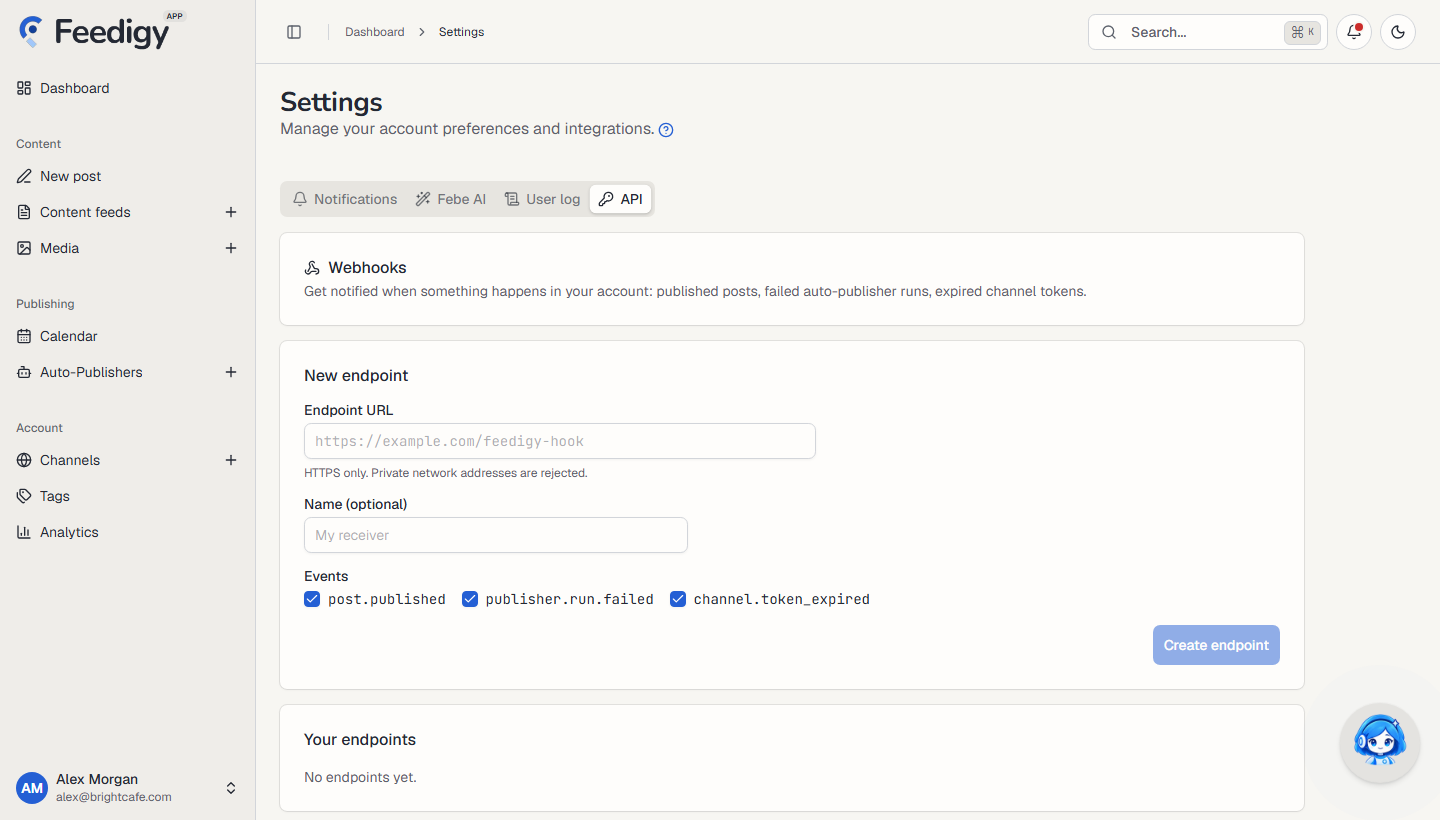
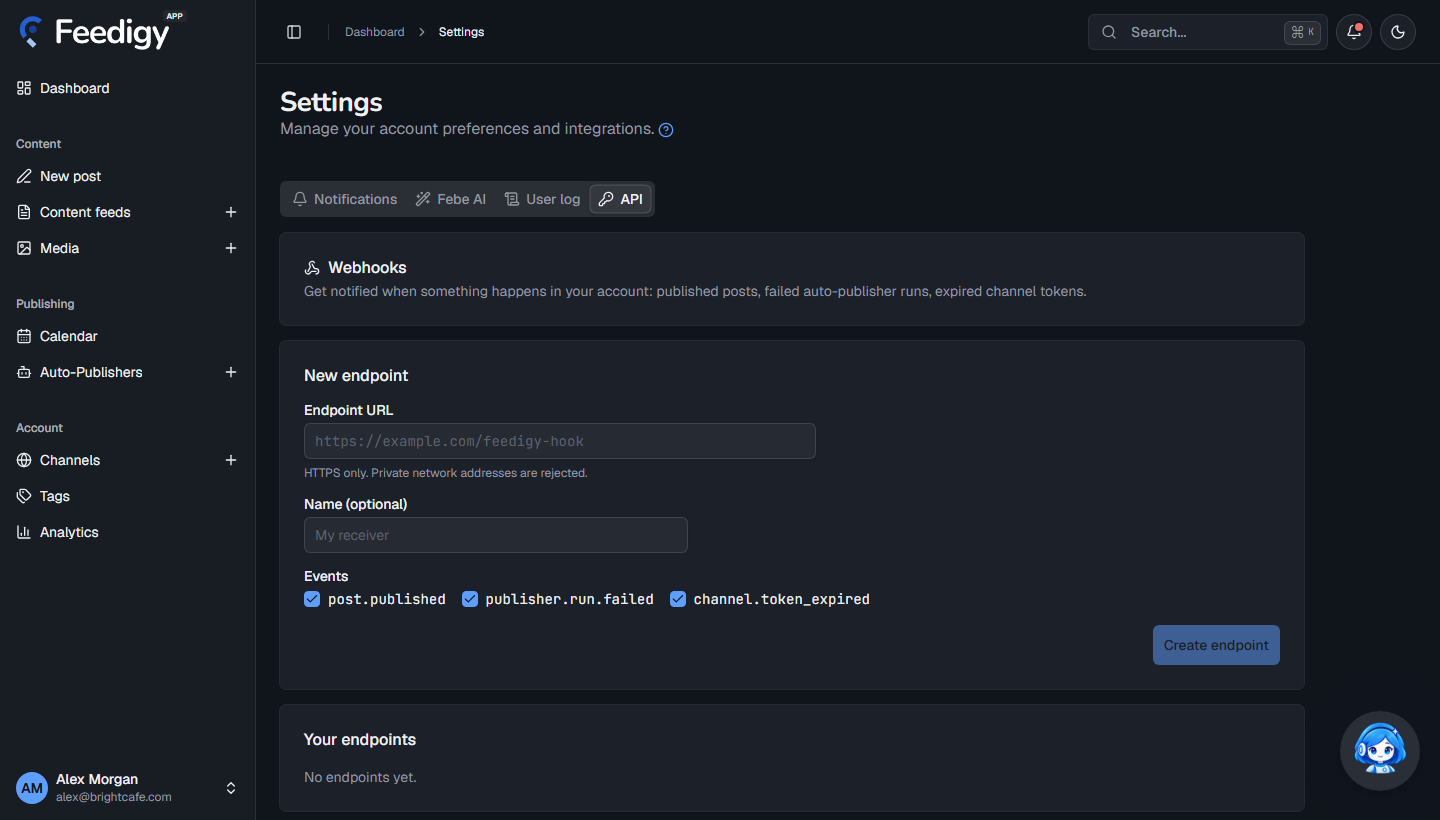
Section titled “Webhooks”Webhooks tell your own server when something happens in your account.
- Enter the Endpoint URL. It must use HTTPS, and private network addresses are rejected.
- Add a Name (optional).
- Choose the Events:
post.published,publisher.run.failedorchannel.token_expired. - Select Create endpoint, then copy the signing secret. Feedigy shows it once. Use it to verify each delivery.
For each endpoint you can:
- Deliveries: see every delivery, or only the failed ones, and use Redeliver to send one again.
- Rotate secret: create a new secret. The old one stays valid for 24 hours so retries still verify.
- Disable or Enable the endpoint, or Delete it.
See Webhooks for the payload format.
Keep posting through busy weeks
Set sources, keywords and posting hours once. Feedigy posts to your channels while you work on other things.
No card required. The Free plan has no time limit.