
Content Feeds
A feed is a source of posts. Feedigy reads new posts from your feeds, and Auto-Publishers send them to your channels. The Content Feeds page lists every feed in your account in one table. Open it from Content feeds in the sidebar.
Feed types
Section titled “Feed types”Feedigy has four kinds of feeds. They differ in where the posts come from.
| Type | Where the posts come from | You use it to |
|---|---|---|
| Original | You write them in Feedigy. | Publish your own posts, news or offers. |
| Smart | Feedigy builds the feed from a source you pick, such as YouTube, Amazon, Reddit or Google News, and keeps it up to date. | Turn a channel, a product search or a topic into a steady stream of posts. |
| Discovery | A public RSS or Atom feed from another website. You found it in the Feedigy catalog. | Share and curate other sites’ articles. |
| Imported | A public RSS or Atom feed from another website. You added it yourself: from a list of addresses, an OPML file or your NewsBlur account. | Bring the feeds you already follow into Feedigy. |
Original feeds
Section titled “Original feeds”An original feed is a feed you own. You write each post in Feedigy’s editor, publish it now, schedule it for later or keep it as a draft. Feedigy hosts the feed at its own address, such as https://feedigy.com/o/your-feed, so other apps can read it too. See Original Feeds.
Smart feeds
Section titled “Smart feeds”A smart feed is a feed that Feedigy generates for you. You choose a source and settings, for example a YouTube channel, an Amazon search or a news topic, and Feedigy turns the results into feed posts and refreshes them. Use smart feeds when a site has no RSS feed of its own. See What are smart feeds?.
Discovery feeds
Section titled “Discovery feeds”A discovery feed is an existing RSS or Atom feed published by another website. Feedigy only reads it: you cannot edit its posts. Find feeds in the catalog of public feeds on Discover Feeds.
Imported feeds
Section titled “Imported feeds”An imported feed is also an external RSS or Atom feed, and Feedigy only reads it. The difference is how it got into your account: you brought it in yourself. Paste a list of up to 100 feed addresses, upload an OPML or XML file from your RSS reader, or connect your NewsBlur account. Feedigy checks each address and skips feeds you already have. See Imported Feeds.
All feed types count toward your plan’s feed limit.
The Content Feeds table
Section titled “The Content Feeds table”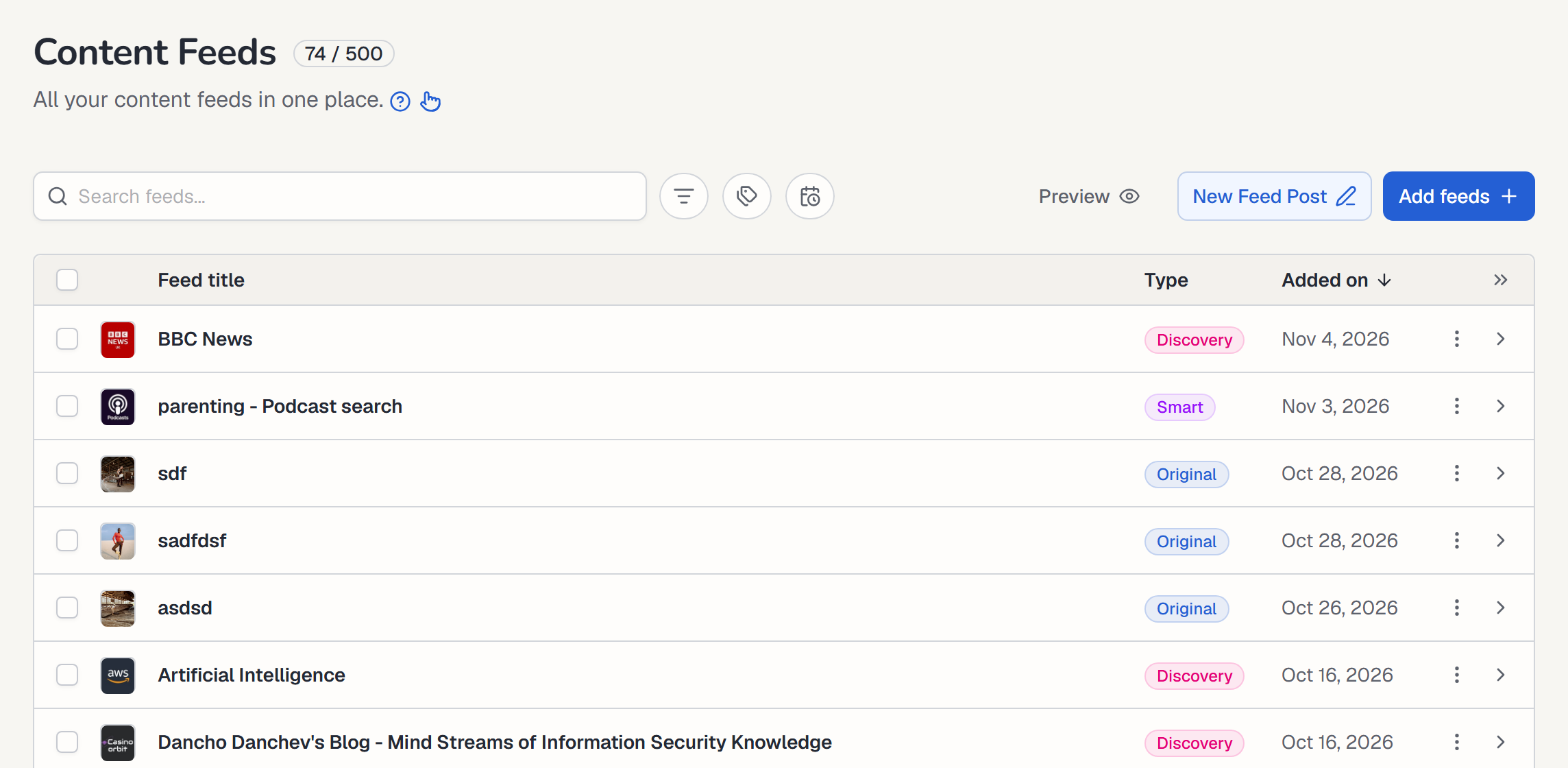
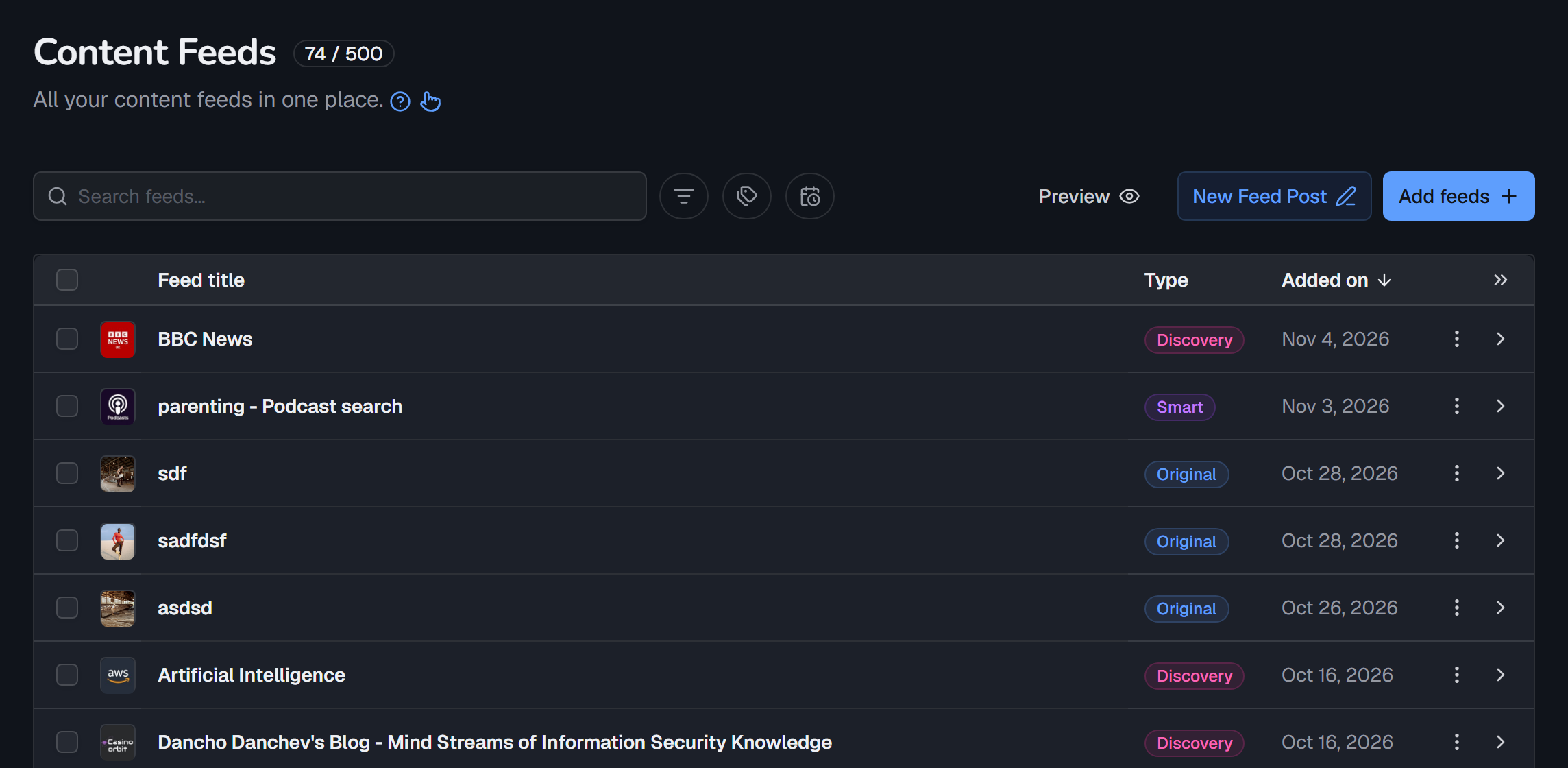
- The counter next to the title shows how many feeds you have and how many your plan allows, for example 74 / 500.
- The question mark opens this manual. The hand icon starts the page’s guided tour.
- Each row shows the feed’s icon, its Feed title, its Type and the date it was Added on. On narrow screens, the Type and Added on columns hide to make room for the title.
Add feeds
Section titled “Add feeds”Select Add feeds to choose how to add a feed.
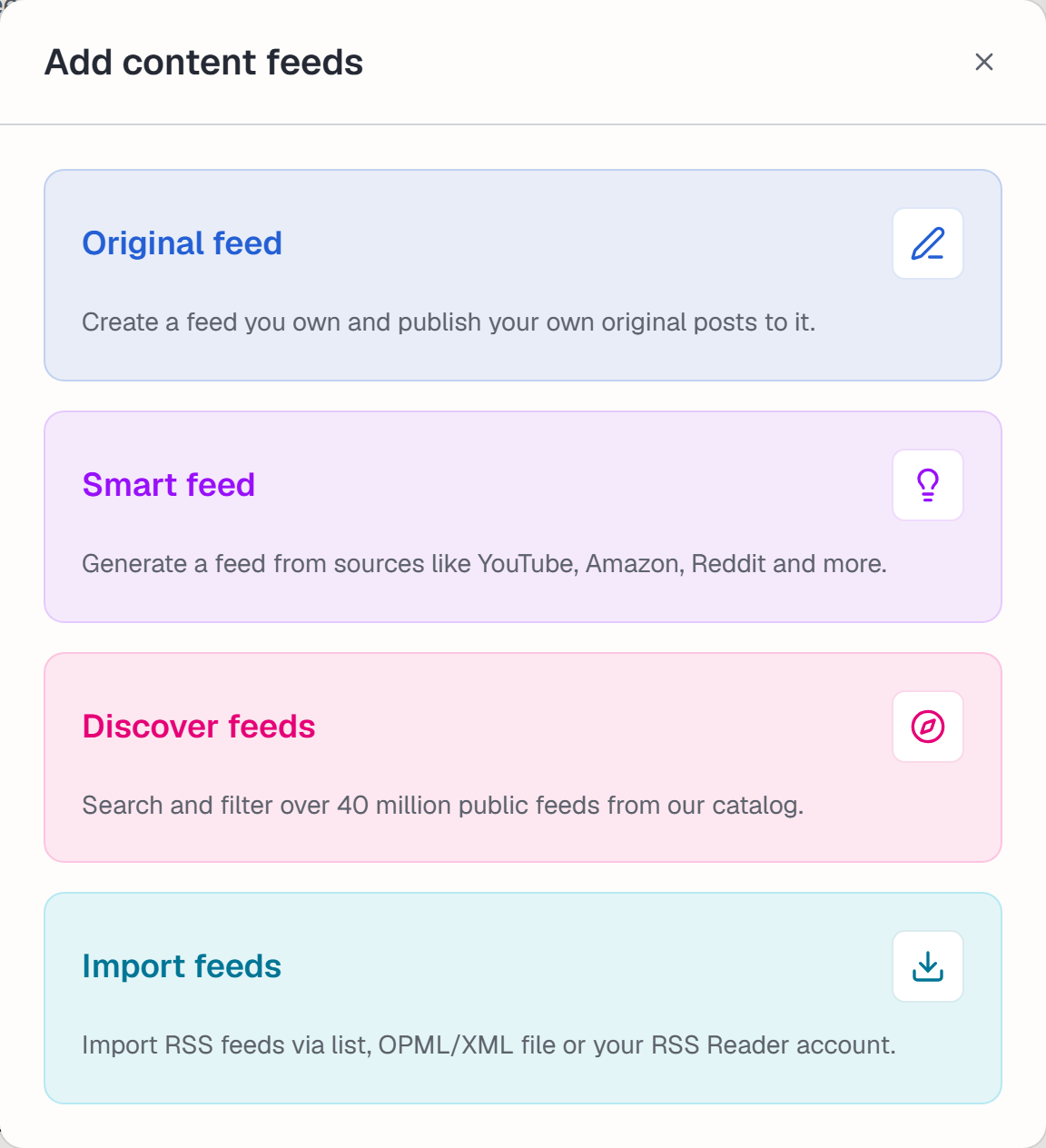
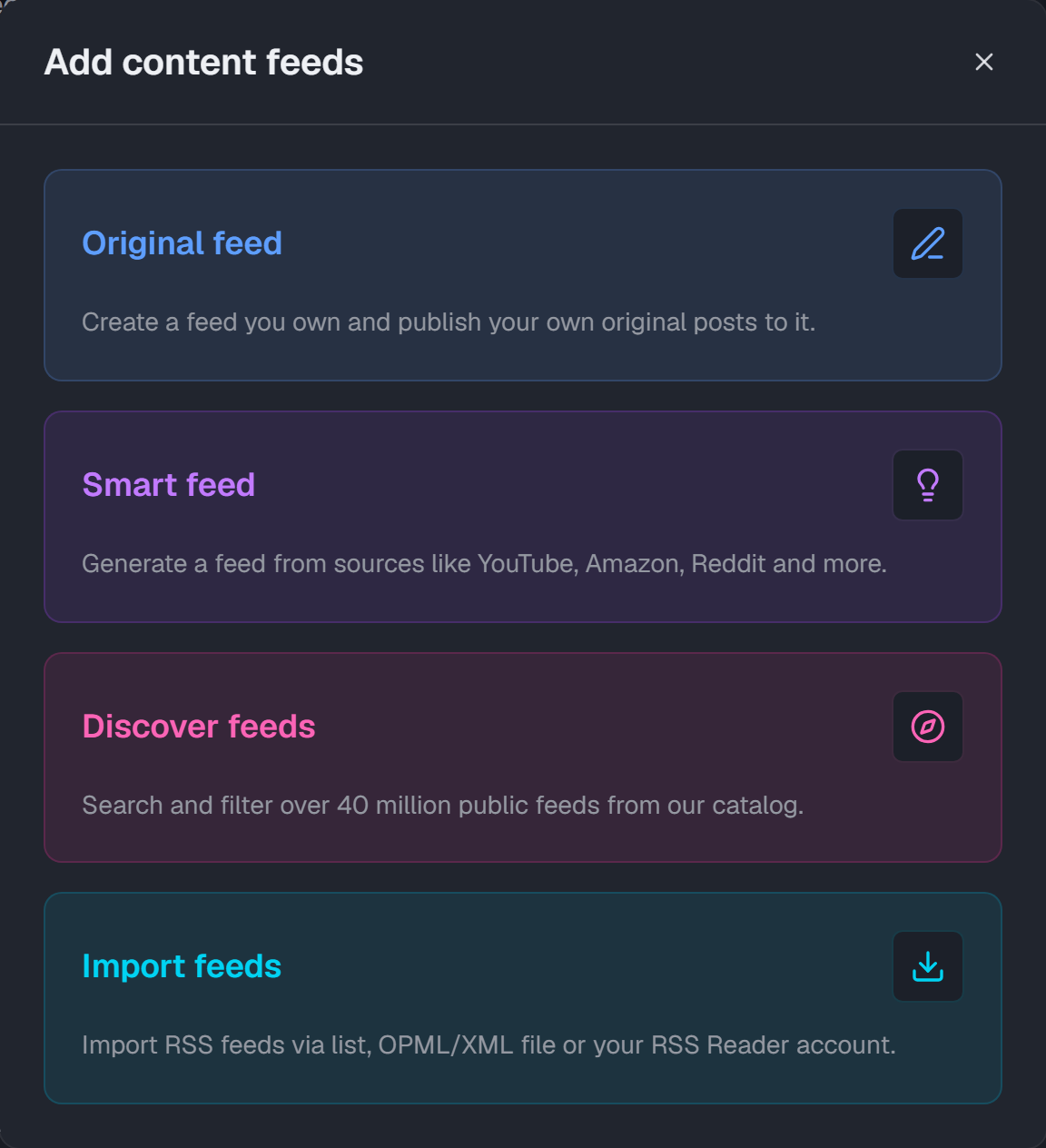
- Original feed: create a feed you own and write posts for it.
- Smart feed: generate a feed from sources such as YouTube, Amazon or Reddit.
- Discover feeds: search and filter over 40 million public feeds in the Feedigy catalog.
- Import feeds: add RSS feeds from a list of addresses, an OPML or XML file, or your NewsBlur account. See Imported Feeds.
New Feed Post starts a new post in one of your original feeds. See Write a feed post.
Search, filter and sort
Section titled “Search, filter and sort”With many feeds, the toolbar above the table helps you find the ones you need. Filters work together: for example, you can show only discovery feeds with the tag news whose title contains “tech”. The counter, the table and the feed reader all follow the filters you set.


- Search feeds…: type a word from a feed’s title or description. The table updates as you type.
- Filter by type (the funnel icon): show only Original, Smart, Discovery or Imported feeds. The number next to each type shows how many feeds you have of it. You can pick more than one type. The button takes the colour of the type you picked.
- Tags (the tag icon): show only feeds with the tags you pick. See Tags.
- Filter by post status (the calendar icon): show original feeds that have Scheduled posts waiting to publish, or Drafts.
- Status (the flag icon): appears only when some feeds are disabled because your account is over its feed limit. Choose Active or Disabled. A disabled feed shows a flag. Remove it or upgrade your plan to turn it back on.
- Reset filters: appears once a filter is on, and clears all of them.
To sort, select a column heading: Feed title, Type or Added on. Select it again to reverse the order. The arrow shows the current order. By default, the newest feeds are first.
Expand a row
Section titled “Expand a row”Select the arrow at the end of a row to see the feed’s details. Select Expand all rows (the double arrow at the end of the heading row) to open every row at once, and select it again to close them.
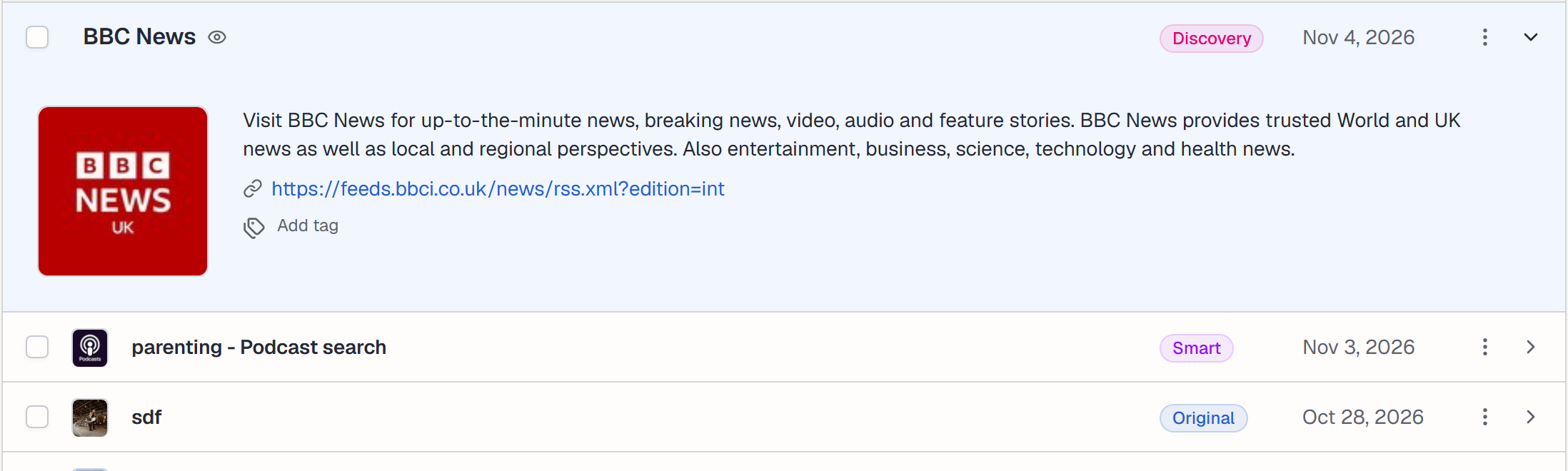
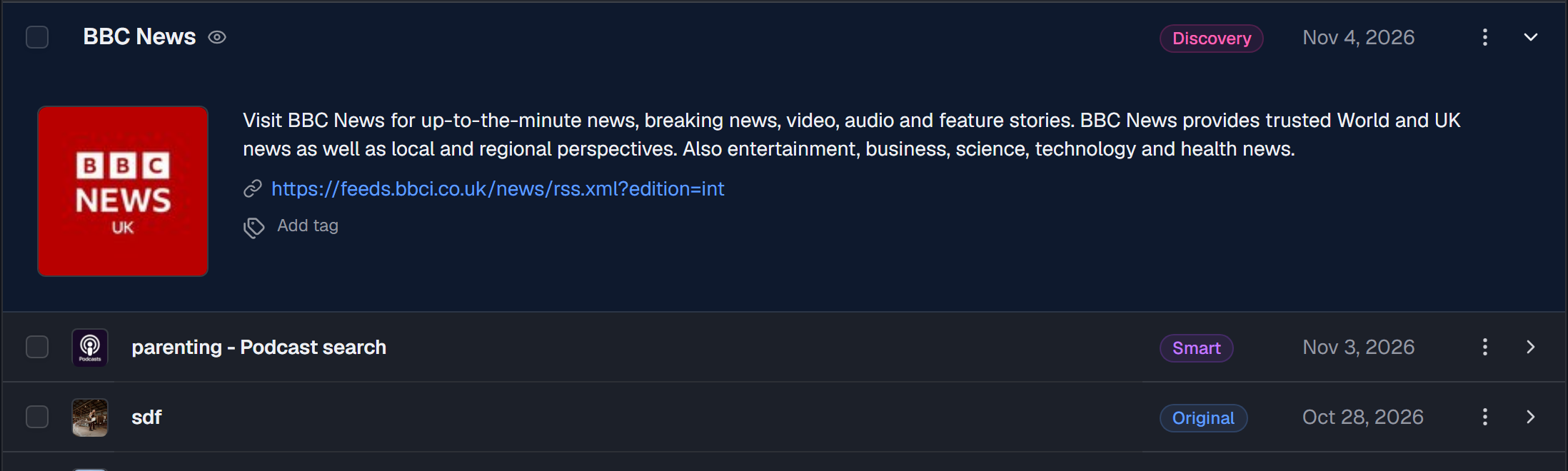
An expanded row shows:
- The description of an external feed, as its publisher wrote it.
- Post counts for an original feed: published, delayed (scheduled for later) and draft.
- The feed address. Select it to open the feed in a new tab.
- Tags. Select Add tag to tag the feed, or select a tag to change it.
Row actions
Section titled “Row actions”Select ⋮ on a row to open its actions:
- Preview feed: read the feed’s posts. See Read your feeds in the feed reader.
- Add to auto-publisher: send this feed’s posts to your channels with a new or existing Auto-Publisher.
- Feed URL: open the feed’s address in a new tab.
- Feed source: open the website the feed comes from.
- Delete feed: remove the feed from your account.
Original feeds also offer Compose new post. Original and smart feeds offer Edit feed, to change the feed’s settings.
Read your feeds in the feed reader
Section titled “Read your feeds in the feed reader”The Content Feeds page is also a feed reader. You can read the posts of all your feeds without leaving Feedigy, like in an RSS reader app. The reader shows the feeds that match your search and filters, so filter first to read only what you need.
There are two ways to read.
Read all feeds in one timeline
Section titled “Read all feeds in one timeline”Select Preview (the eye icon) in the toolbar. Feedigy shows the posts of every feed in the list in one timeline, called All feeds. Scroll down, and more posts load as you go.
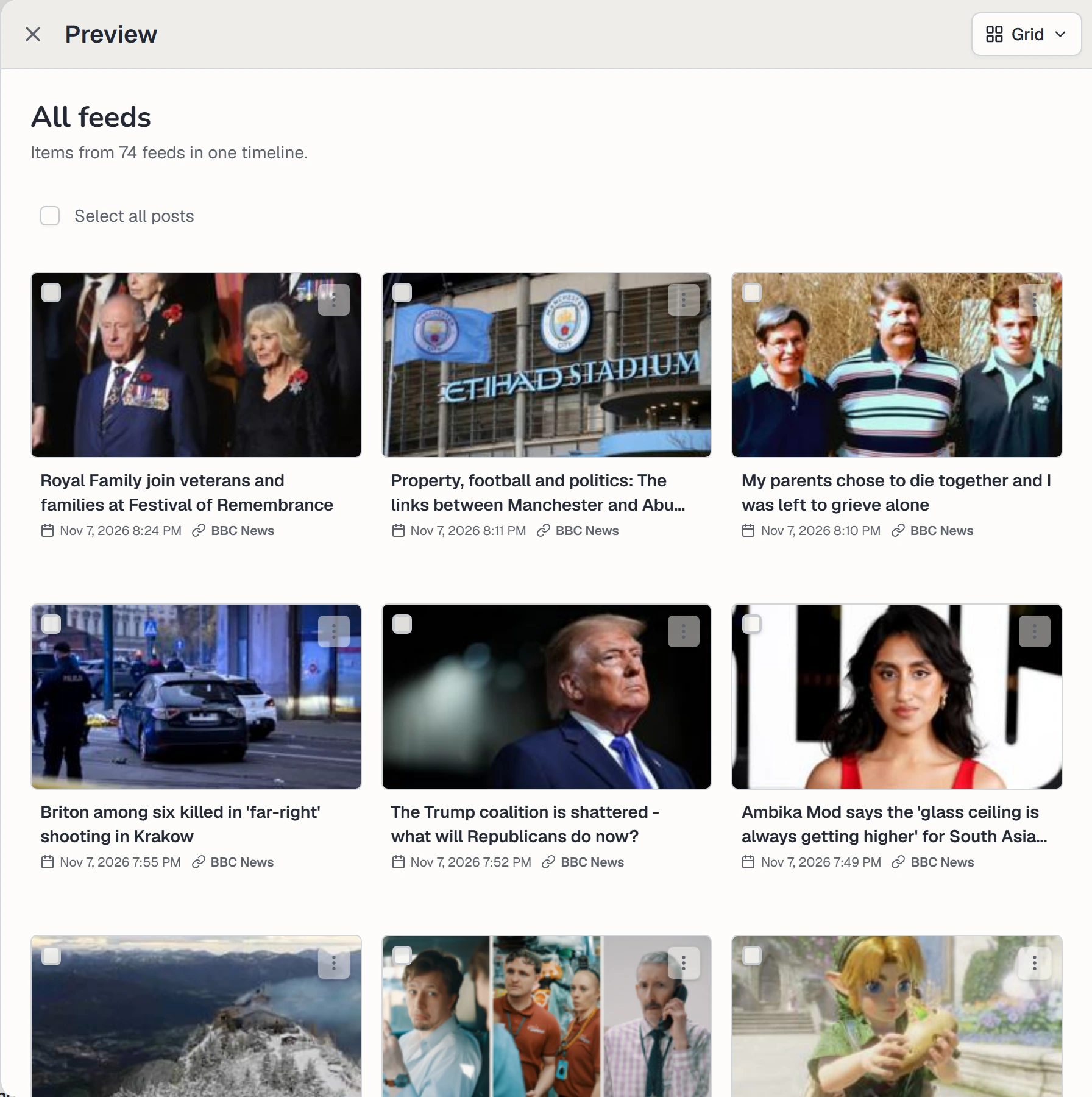
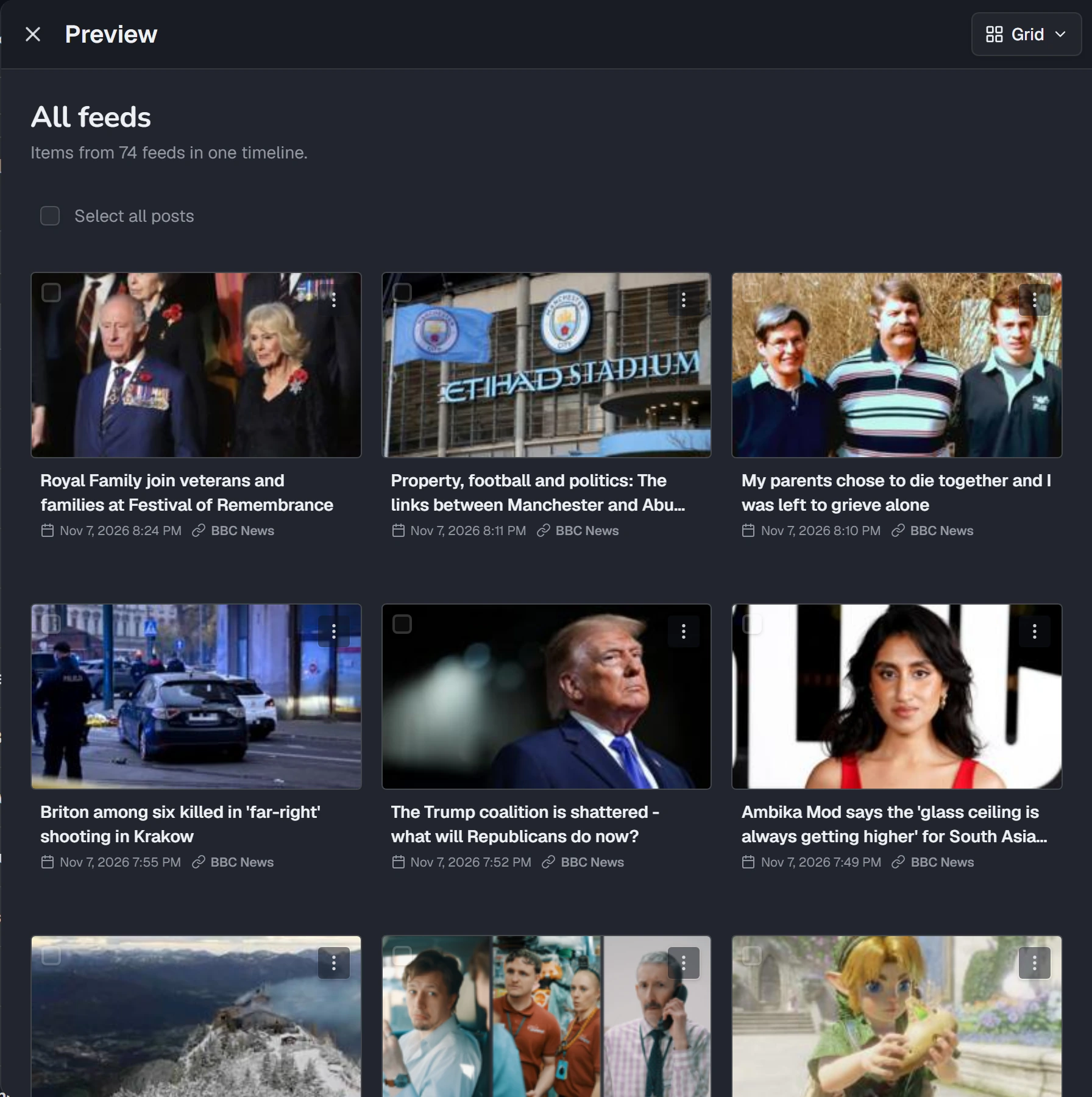
For example, filter by the Discovery type and the tag news, then select Preview to read today’s news from all your news sources at once.
Feeds disabled because your account is over its feed limit are left out of the timeline.
Read one feed at a time
Section titled “Read one feed at a time”Select a feed’s title, or point at its icon and select the eye, to open that feed in the reader. The counter at the top shows where you are in the list, for example 1 of 74.
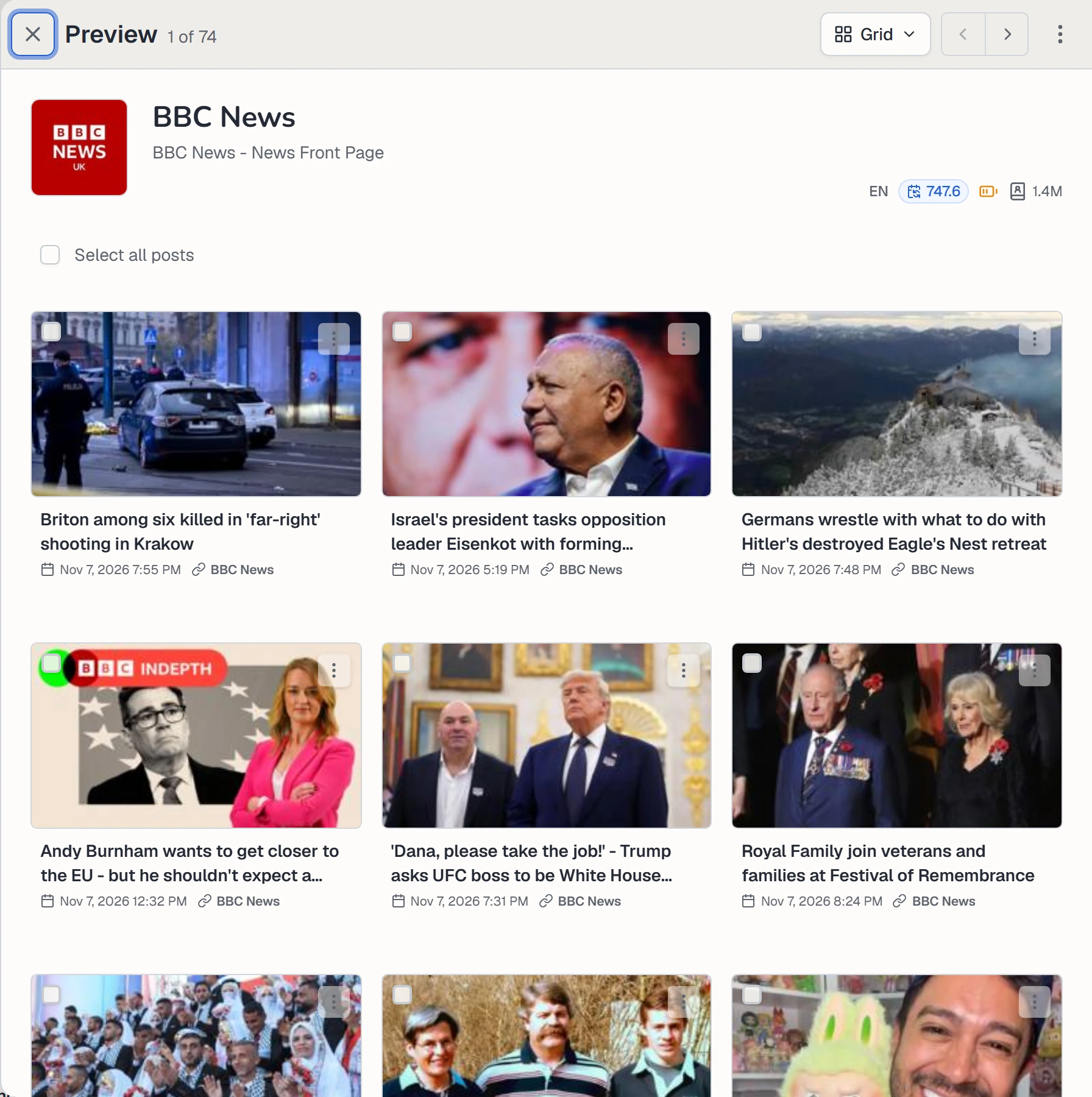
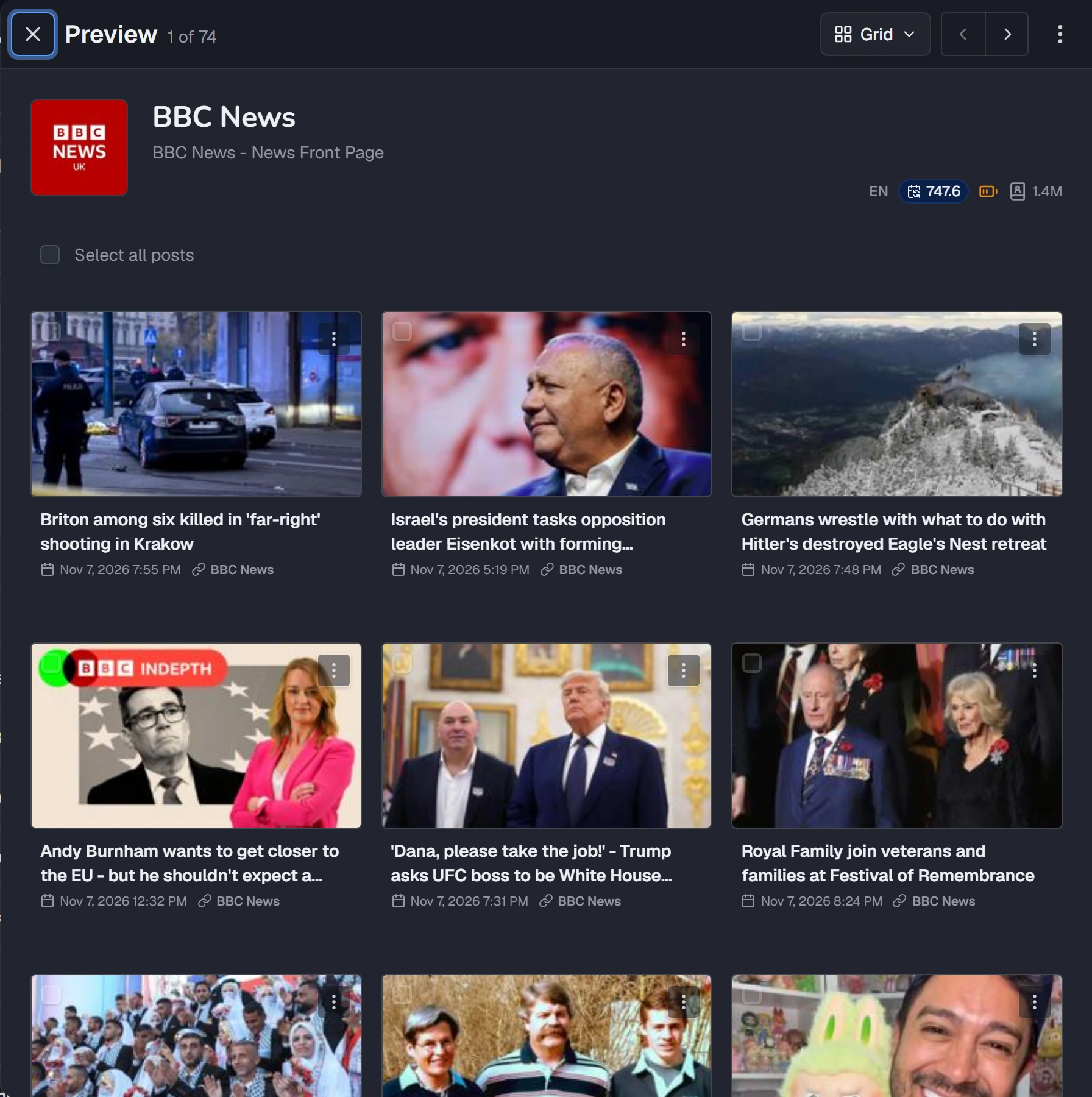
To move to the next or previous feed, without closing the reader:
- select the › and ‹ arrows at the top,
- press the
→and←keys on your keyboard, or - swipe left or right on a phone or tablet.
The reader moves through the feeds in the same order as the table, with your filters and sorting. So you can filter the list, open the first feed, and flip through the rest one by one.
Reader options
Section titled “Reader options”- The view menu changes the layout: Full view, Magazine, Grid or Titles only. It also sets the Text size.
- ⋮ at the top holds the feed’s actions, the same as in the table.
- Full article loads the whole article from the website when the feed holds only a summary.
- ⋮ on a post holds actions for that post, such as View original post, Post to channels or Copy to… an original feed. In an original feed, you can also Edit post, Move to… another feed or Delete it.
To act on several posts, tick Select post on each one, or Select all posts. You can then Copy to… an original feed. Delete is offered too when the posts are in an original feed. To post to channels or move a post, use that post’s own ⋮ menu.
Work with several feeds
Section titled “Work with several feeds”Tick the box at the start of each row you want, or the box in the heading row to select every feed in the list. A bar appears with the number selected, for example 3 of 74 selected. Open Select action and choose:
- Add to Auto-Publisher: add all the selected feeds to one Auto-Publisher.
- Assign tags: add tags to all the selected feeds at once.
- Export: download the selected feeds as a CSV spreadsheet or an OPML file. Most RSS readers can import OPML.
- Delete: remove the selected feeds.
Select Cancel to clear the selection.
Delete feeds
Section titled “Delete feeds”Select Delete feed in a row’s menu, or Delete for a selection, then confirm. Feedigy shows a message with Undo for a few seconds. Select it to bring the feeds back.
When you delete a feed:
- Its posts are no longer read. An Auto-Publisher that used the feed stops getting posts from it.
- It no longer counts toward your feed limit.
- Deleting an original feed also deletes the posts you wrote in it.
Keep posting through busy weeks
Set sources, keywords and posting hours once. Feedigy posts to your channels while you work on other things.
No card required. The Free plan has no time limit.