
X / Twitter feeds
Это содержимое пока не доступно на вашем языке.
An X / Twitter feed is a smart feed of public posts from X. Use it to follow a hashtag, to collect what people say about a subject, or to keep up with chosen accounts.
Create an X feed
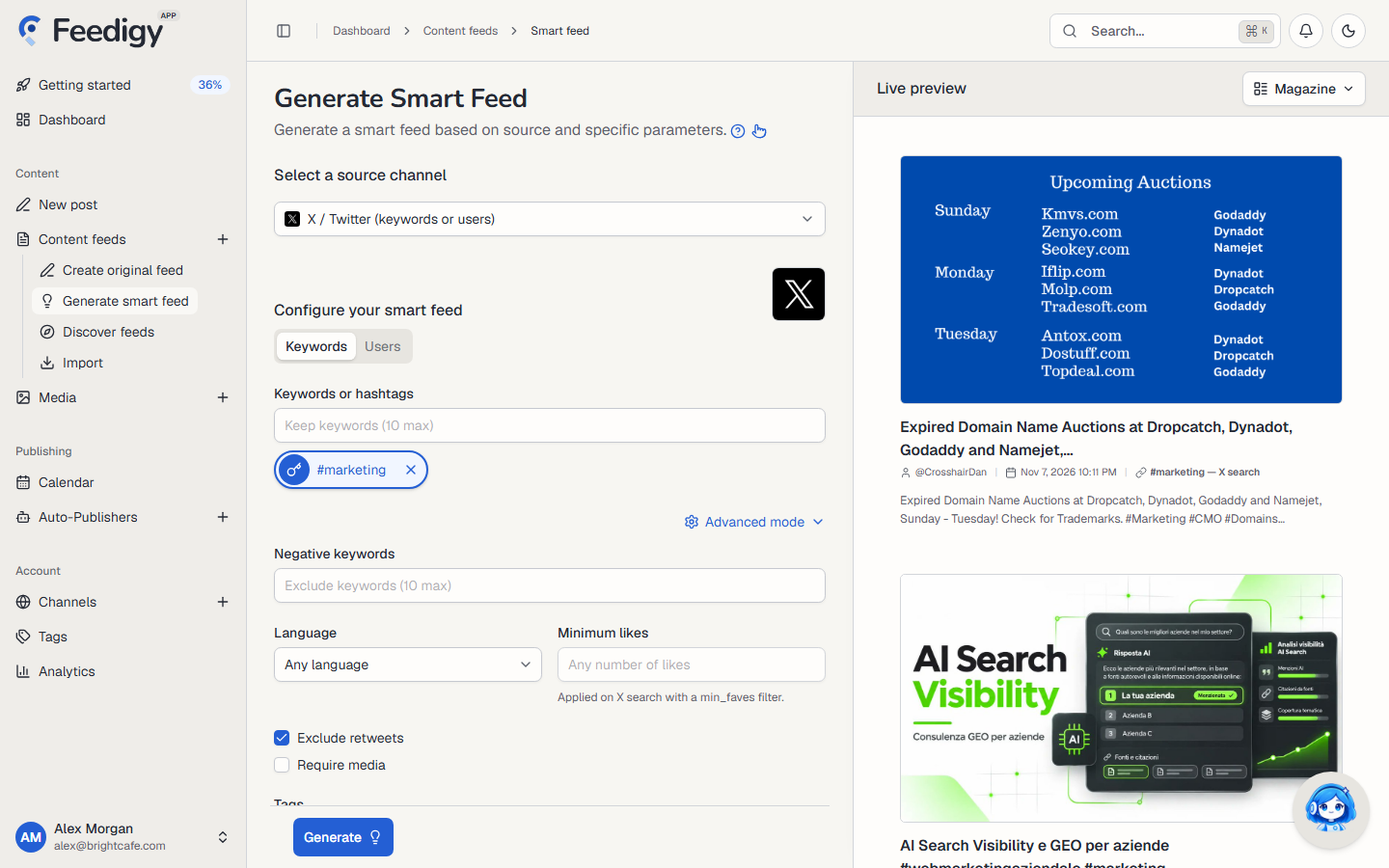
Section titled “Create an X feed”- Open Content feeds in the sidebar, then Generate smart feed.
- In Select a source channel, choose X / Twitter.
- Choose Keywords or Users (see below).
- Check the posts in Live preview on the right.
- Select Generate.
Keywords or users
Section titled “Keywords or users”- Keywords: type a word, phrase or hashtag into Keywords or hashtags and press Enter. You get recent posts that match.
- Users: type a name or an
@handleinto X accounts, then pick the account from the list. Feedigy shows each account’s follower count to help you pick the right one. You get that account’s posts.
You can add up to 10 keywords or accounts. Each one becomes its own feed. Select one to preview it alone.
Advanced mode
Section titled “Advanced mode”Select Advanced mode to filter the posts:
- Negative keywords: skip posts that contain any of these words (up to 10).
- Language: only posts in this language, or Any language.
- Minimum likes: only posts with at least this many likes. Use it to keep the popular posts and drop the noise.
- Exclude retweets: skip reposts, so you get only original posts. It is on by default.
- Require media: only posts with an image or a video.
- Tags: tags for the new feeds. See Tags.
After you generate
Section titled “After you generate”The new feeds appear on the Content Feeds page with the Smart type. Feedigy refreshes an X feed at most every 4 hours, when the feed is read. To share the posts on your channels, add the feed to an Auto-Publisher.
To post to your own X account, connect it on the X / Twitter channel page.
Keep posting through busy weeks
Set sources, keywords and posting hours once. Feedigy posts to your channels while you work on other things.
No card required. The Free plan has no time limit.