
X (Twitter) (destination)
Это содержимое пока не доступно на вашем языке.
Connect X as a destination to publish to your X accounts with Auto-Publishers and channel posts.
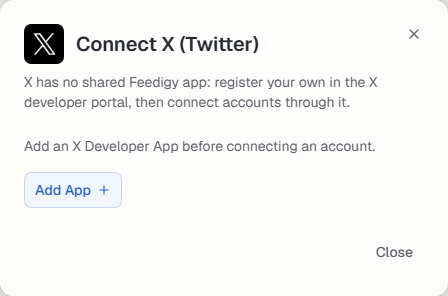
X has no shared Feedigy app. You register your own X developer app, then connect accounts through it. Posts use your app’s API access and limits.
Connect
Section titled “Connect”- In the X developer portal, create an app. Use a confidential Web App or Automated App.
- In Feedigy, open Channels, select Add a channel, then the X (Twitter) card.
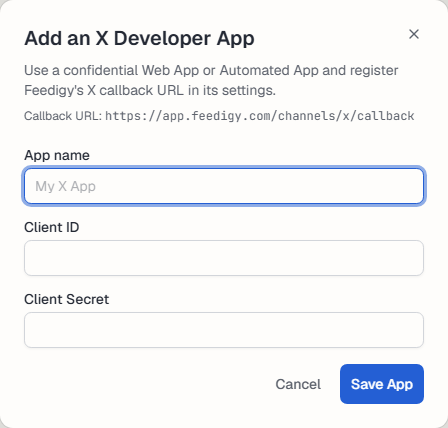
- Select Add App. Copy the Callback URL shown in the window into your X app’s settings.
- Enter the App name, the Client ID and the Client Secret from the X developer portal. Select Save App.
- Connect an X account through the app and approve access.
To add apps or accounts later, select Manage apps on the X card.
Use it
Section titled “Use it”Manage the connection
Section titled “Manage the connection”The channel appears on the Channels page. Use Settings to rename it, change its picture or Reauthorize it, and Disconnect to remove it. See What are channels?.
Keep posting through busy weeks
Set sources, keywords and posting hours once. Feedigy posts to your channels while you work on other things.
No card required. The Free plan has no time limit.