
Apple Media feeds
Это содержимое пока не доступно на вашем языке.
An Apple Media feed is a smart feed of music, apps, books, audiobooks and TV shows from Apple’s stores. Each item comes with its artwork, its artist or author, and a link to the store. Use it to share the week’s top songs, new releases from an artist you follow, or the top apps in your country. You need no account.
Create an Apple Media feed
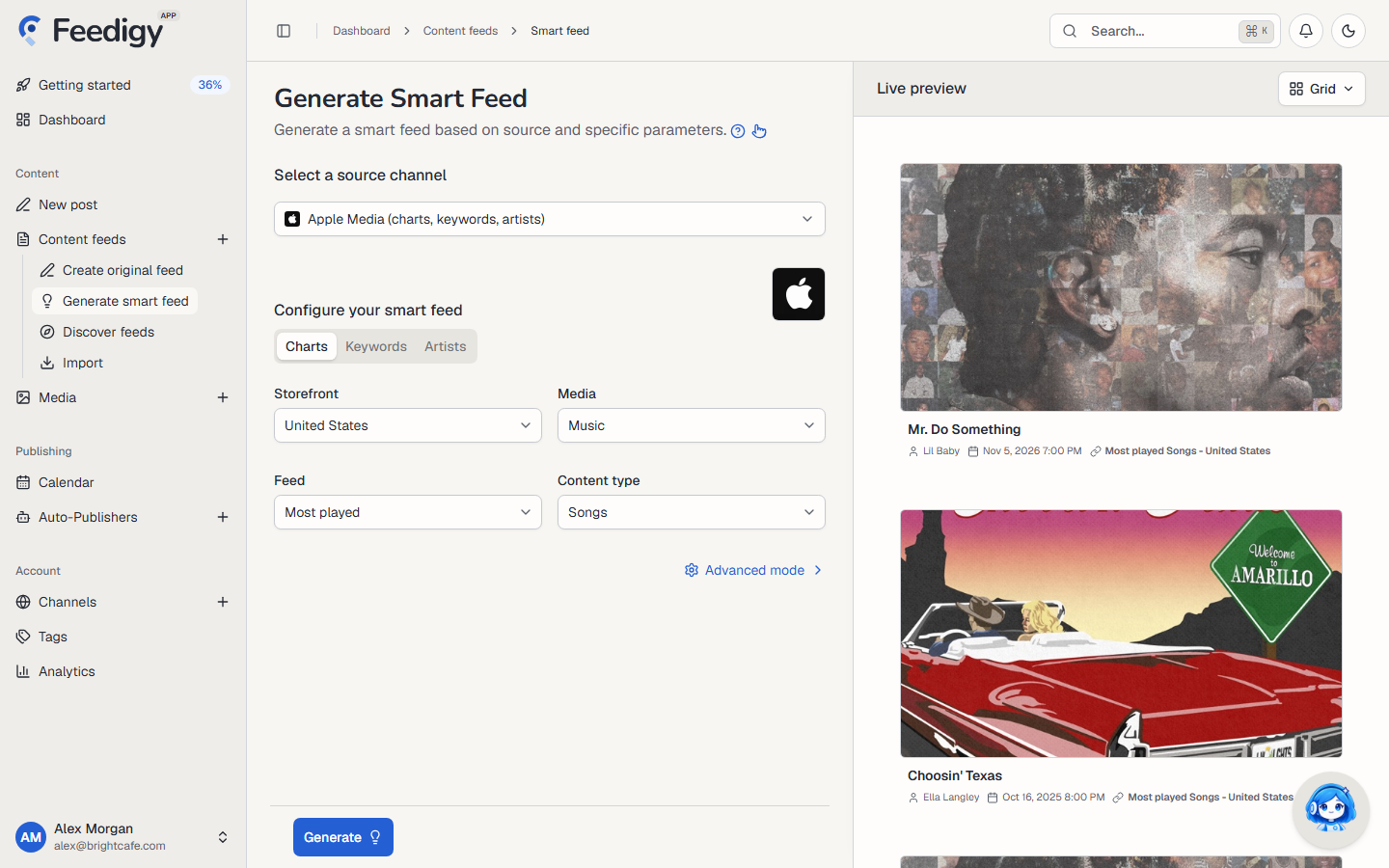
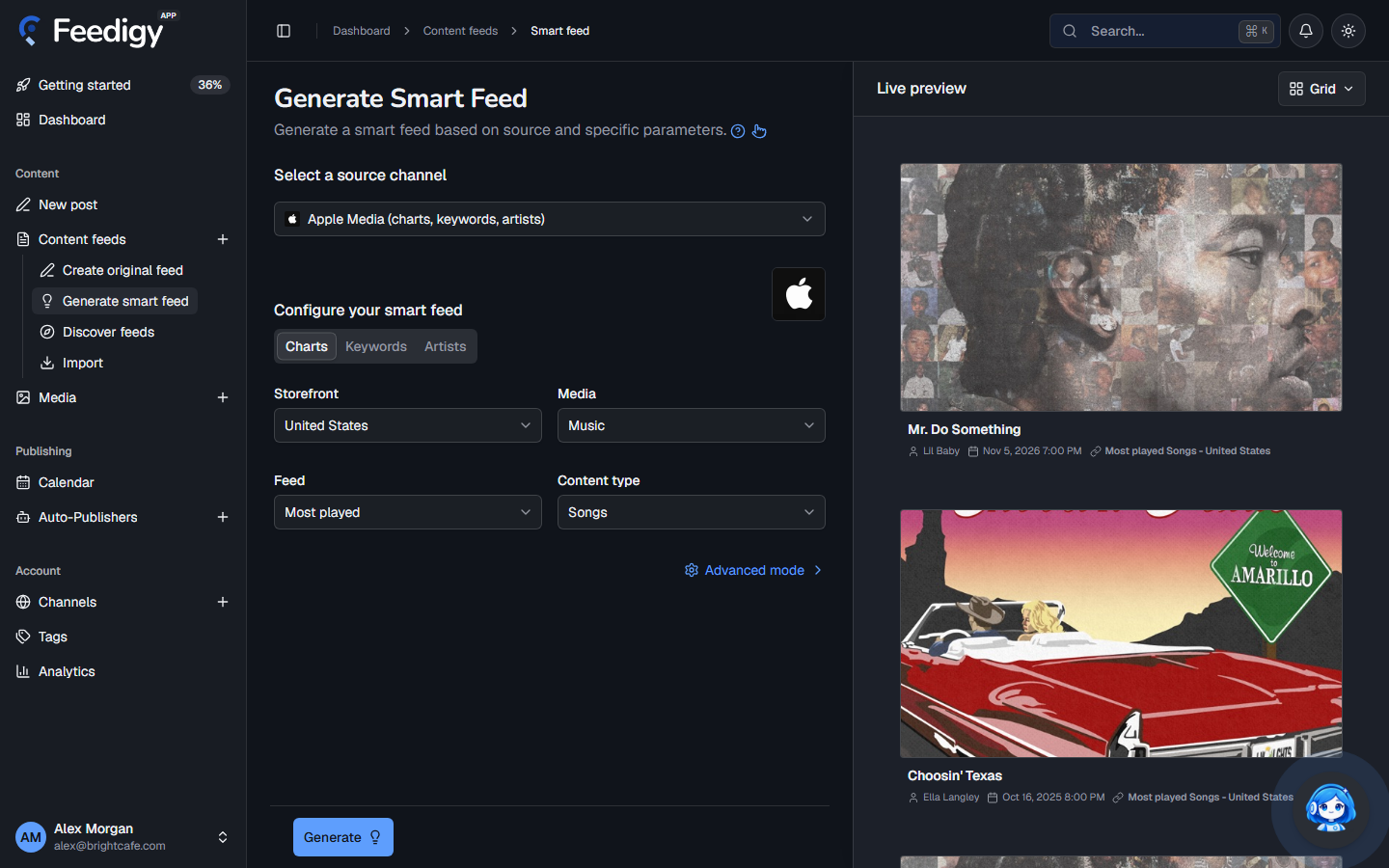
Section titled “Create an Apple Media feed”- Open Content feeds in the sidebar, then Generate smart feed.
- In Select a source channel, choose Apple Media.
- Choose Charts, Keywords or Artists (see below).
- Check the items in Live preview on the right.
- Select Generate.
Charts
Section titled “Charts”Follow one of Apple’s top charts. Set four options:
-
Storefront: the country of the store, for example United States.
-
Media and Feed: which chart.
Media Feed Content type Music Most played Songs, Albums, Music videos or Playlists Apps Top free or Top paid Apps Books Top free or Top paid Books Audiobooks Top Audiobooks -
Content type: what the chart lists.
Keywords
Section titled “Keywords”Search Apple’s stores. Choose the Media (Music, Apps, Books, Audiobooks or TV Shows) and the Content type, for example Albums or TV episodes. Then type a keyword and press Enter. Each keyword becomes its own feed.
Artists
Section titled “Artists”Follow a music artist or an audiobook author. Type a name into Search artists, then select Add next to the right one. The feed lists their releases: albums, songs and music videos for a musician, or audiobooks for an author.
Advanced mode
Section titled “Advanced mode”- Filter by keywords: keep only items that contain one of these words (up to 10).
- Filter by negative keywords: skip items that contain any of these words (up to 10).
- Tags: tags for the new feeds. See Tags.
After you generate
Section titled “After you generate”The new feeds appear on the Content Feeds page with the Smart type. Feedigy refreshes an Apple Media feed at most every 6 hours, when the feed is read. To share the items on your channels, add the feed to an Auto-Publisher.
Keep posting through busy weeks
Set sources, keywords and posting hours once. Feedigy posts to your channels while you work on other things.
No card required. The Free plan has no time limit.