

























An AI content assistant can turn one feed item into a post that sounds like you, if you give it one narrow job at a time. Paste the item, get a summary, pull out angles, add your own view, draft per channel, then fact-check before anything goes live. Keep the original link attached the whole way so the source gets credit.
Below are five prompt recipes for that AI content workflow, all built on one running example. The format is a how-to: numbered steps first, then fixes for when the output goes wrong.
The running example
Say your feed reader picks up a new item from an email marketing blog. It's a report on email open rates, covering how subject line length, send time and list hygiene relate to opens. You want a LinkedIn post, a short X post and a newsletter blurb out of it. They should sound like your take, with the publisher credited.
Every prompt below uses that item. We left numbers out of the example on purpose, because you should never repeat a figure you haven't checked against the source.
Why not just ask the AI to write a post about it?
You'd get a confident rewrite of someone else's article with your name on it. And it may contain details that were never in the original.
Google says it plainly in its guidance on generative AI content: "generative models don't retrieve facts, but predict a likely sequence of words." Public broadcasters tested this on news. In an EBU and BBC study of AI assistants released in October 2025, almost half of the news answers from ChatGPT, Copilot, Gemini and Perplexity had at least one significant issue. Sourcing problems were the most common.
Small steps give you a checkpoint after each one. They also leave room for the part only you can add: an opinion, an example from your market, a reason your audience should care.
How to use an AI content assistant on a feed item, step by step
The six steps below follow this flow. The source link travels with the draft from start to finish.
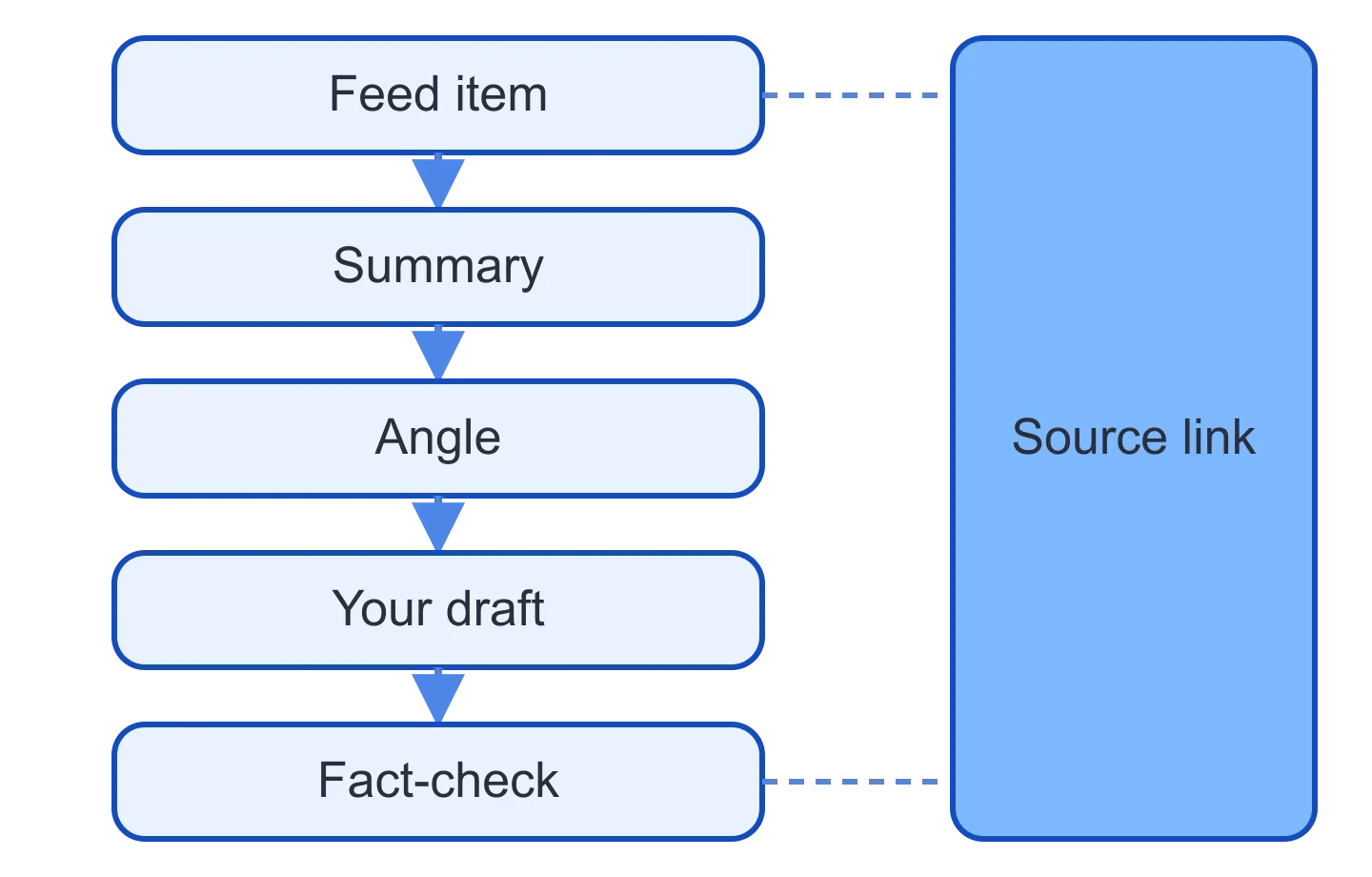
1. Save the source before you prompt
Before you open the assistant, copy the article's URL, title and publisher name into a place that stays with the draft. A notes field works. So does a column in your content tracker. You need all three later, for the credit line and for the fact-check.
Then paste the full article text into the assistant. That way you know exactly what it read.
2. Summarize what the item says
Summarize this article in 5 bullets.
Use only facts stated in the text.
Tag every number or claim [CHECK].
Then list what it leaves out.
The last line does the most work. Gaps in the source are where your post can say something new. For the open-rates report, the assistant might point out that it doesn't split results by industry, or that it treats B2B and consumer lists the same.
⚠️ Read the summary against the article. If a bullet has no matching sentence in the source, delete it.
3. Extract angles
A summary tells you what the source said. An angle is what you would say about it.
Give me 5 angles for a post on this.
Audience: [your audience].
For each: a one-line hook, the point,
and who would disagree.
"Who would disagree" pushes the assistant toward angles that take a position. On the open-rates item you might get "sender name matters more than subject line length" or "open rate is a shaky number to optimize for."
Pick one. Then write two or three sentences of your own before the assistant drafts anything: what you believe, plus one example from your work or your customers. The model can't supply that part honestly, and it's what makes the post yours.
💡 Keep these sentences in a file. They become a voice sample you can paste into later prompts.
4. Draft captions per channel
Ask for one channel at a time. A single "write posts for every channel" prompt tends to return one post trimmed to different lengths.
Write a LinkedIn post from my notes.
Angle: [chosen angle].
My view: [your sentences].
Under 200 words. No hashtags.
Last line: Source: [publisher].
Then change the first line and the length rule for each channel:
| Channel | What to change |
|---|---|
| Short lines, one clear opinion | |
| X | One post, source link at the end |
| Newsletter | Two sentences, then "read the report" |
| Carousel caption, credit on the slide |
📌 Keep the credit line in every version. If you plan to quote longer passages or repost the full piece, our guide to syndication without duplicate content covers excerpts, attribution and canonical tags.
5. Build a fact-check list
Ask the assistant to list what needs checking. Then check it yourself, with the article open.
List every factual claim in my draft.
For each, quote the source sentence
that supports it, or write NONE.
Cut or source anything marked NONE. For anything with a quote, find that quote in the article, because assistants misquote too. Then check names, dates and the publisher's name in your credit line.
Google calls it "critical to manually factcheck and review all AI-generated content for accuracy and trustworthiness before publishing." The same guidance says the review covers metadata: titles, meta descriptions, structured data and image alt text.
How much review a post needs depends on what could go wrong if it's wrong. Our human review workflow for AI social posts has a risk-tiered checklist you can copy.
6. Tighten it in your voice
Tighten this draft by about a third.
Keep my opinion and examples as is.
Cut filler and hype words.
Do not add any new facts.
Read the result out loud once. Rewrite any sentence nobody you know would say. If outputs keep drifting, paste a past post you like above the prompt as a sample.
Tightening can change what a claim means. Run the step 5 list again if the edit touched any facts.
What should you do when the output goes wrong?
The draft reads like the source with swapped words
You probably skipped your own view in step 3. Add it, then add "Do not reuse phrasing from the source" to the drafting prompt. If there's nothing you want to say about an item, skip it.
The assistant adds facts that aren't in the article
Repeat "Use only facts stated in the text" in every prompt, and run the step 5 list on every draft. Check that you pasted the full text. A partial paste invites the model to fill the gaps.
Every channel version looks the same
Write one prompt per channel and describe the reader on that channel. A sample post from each channel helps more than a longer instruction.
The credit line keeps disappearing
Put it in the prompt as a required last line, and make it the final item on your pre-publish check. Edits in step 6 can drop it.
You're posting a lot and it all feels thin
Google warns that using generative AI "to generate many pages without adding value for users may violate" its scaled content abuse policy. Social readers notice thin posts too. Post fewer items and give each one a real angle.
✅ Before you publish, confirm four things: the angle is yours, every claim traces to the source, the credit names the publisher, and the link works. An AI content assistant can speed up every step before that check. The check is still yours.
Questions about using an AI content assistant
Is it okay to post about someone else's article?
Usually, when you add your own view, keep quotes short and name and link the original. Commenting on an article with credit is common practice, though rules on quoting vary by country and publisher. Copying it with a few words changed is not.
Does Google penalize AI-written content?
Google's guidance doesn't ban AI content. The test is whether a page meets Search Essentials and Google's spam policies. Mass-producing pages without adding value for users is the risk it calls out.
Can the assistant fact-check its own draft?
It can list claims and match them to source sentences, which speeds things up. It can't confirm the facts are true, and the EBU and BBC study found sourcing was the most common problem in assistant answers. You do the final check.
Should you tell readers you used AI?
That's your call per channel. Google notes that "sharing information about how a piece of content was created can help give your readers more context." One line on how you made the post is enough.
Doing this inside Feedigy
Feedigy's built-in assistant, Febe AI, is a floating launcher on every signed-in page. It can read your feed items and feed summaries, open a full stored post by ID and search My Content. Ask it to write a post and it opens the Compose editor prefilled, so you review and save there. Rewrites of a draft you give it land in Compose the same way. Asking it to create a draft post shows a confirm card first. While you write in Compose, AI Copilot (Professional, Casual or Witty tone), auto-suggest and the Ask AI toolbar are there for step 6. Each item has a URL field for the original article's address.
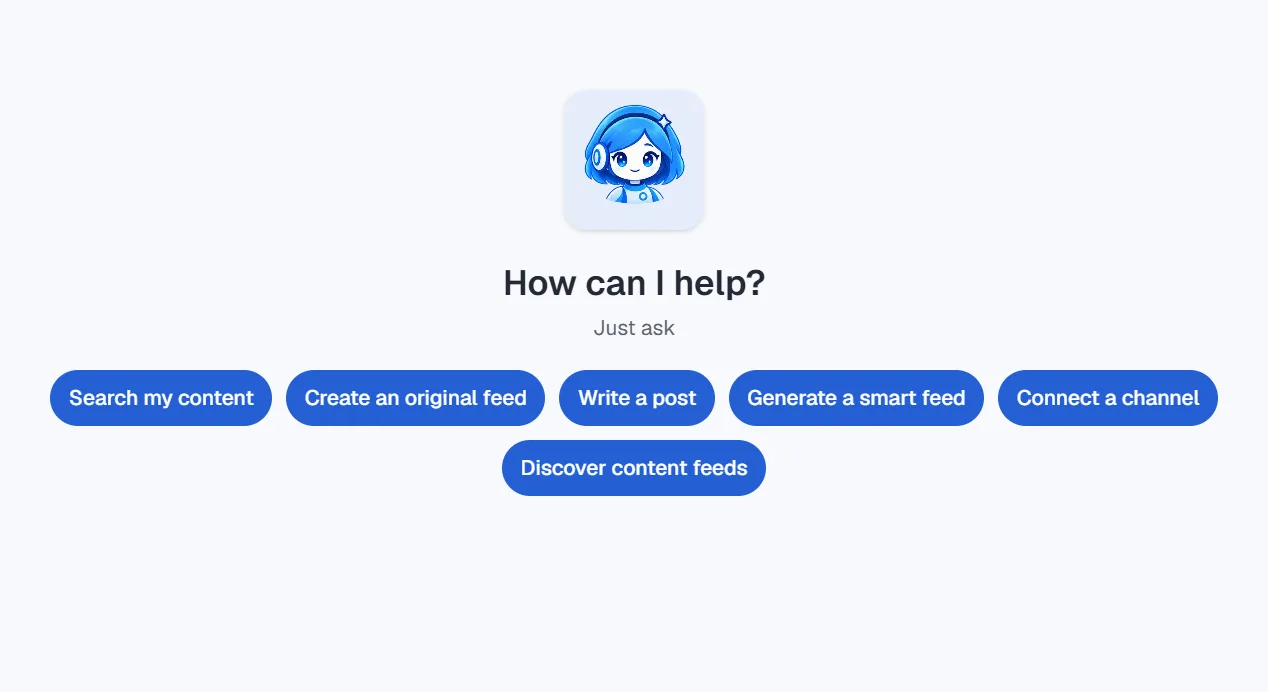
Febe AI has no fact-checking tool, so step 5 stays with you. For scheduled posts, Auto-Publisher can Summarize or Re-write the body for each destination (5 AI credits per processing). Your stored feed item stays unchanged. On WordPress single posts you can add an "Originally published at" link and set Draft or Pending status to review first.